






10 Best Accessibility Testing Tools to Ensure Inclusive Digital Experiences
Accessibility testing is no longer a best practice. It is a legal need as digital accessibility lawsuits rise and regulations increasingly reference WCAG standards. Teams are under pressure to prove accessibility is built into their software development lifecycle if not checked properly.
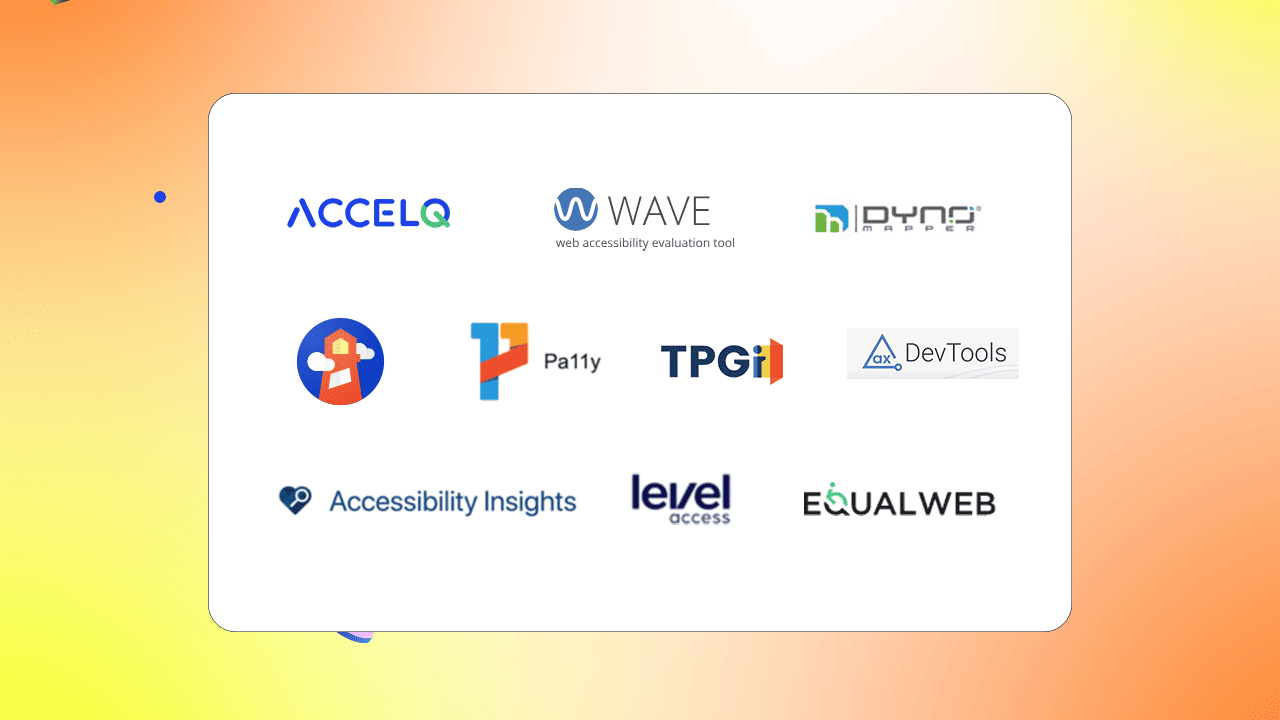
Let us break down the best accessibility testing tools to help you evaluate options based on ADA and WCAG compliance requirements, automation, CI/CD integration, and team maturity. Instead of a generic tools list, the tools below are designed to help your QA, engineering, and compliance teams choose the correct solution to shift from reactive audits to continuous governance.
What are Accessibility Testing Tools?
Accessibility testing tools are software solutions that can find and resolve accessibility issues in your applications and websites. These tools help you to identify barriers that prevent people with disabilities from using apps or websites. It serves as a defense against lawsuits and reputation damage.
10 Best Accessibility Testing Tools
1. ACCELQ

ACCELQ is a test automation platform that enables you to make products and applications more accessible to users with disabilities. It can verify web accessibility during test execution. The platform performs each validation contextually for each application page during its automated test execution. Using ACCELQ, you can easily validate web accessibility with a single click. This platform can automate the process of identifying violations of accessibility standards, such as WCAG, across web and mobile platforms.
Features:
- Design Studio is a test scenario development environment used to develop scenarios automatically in a codeless manner.
- An AI-powered smart recorder in the Action Logic Editor tool can accelerate testing logic development and record validations.
- The playback feature lets users instantly validate any test logic.
- Embed accessibility testing into the functional test cycle to perform test automation on every page for web accessibility validation.
- The platform can automatically kick off the validation of accessibility parameters at the beginning of each action in the test scenario.
- Comprehensively validates accessibility parameters as defined by the WCAG 2.0 and 2.1 on level A and AA compliance requirements and a number of best practices.
- Reporting provides rich visual controls highlighting failing HTML elements and navigation across these elements.


Pros & Cons of ACCELQ
- Automated testing quickly finds accessibility issues on the application pages
- Accessibility is checked for all pages touched during functional test automation
- The report lists all accessibility violations, grouped by severity and failure category
- No Cons
2. Google Lighthouse

Lighthouse is an open-source automated tool. It can help to improve web apps’ performance, quality, and correctness.
Features:
- Stack packs detect your site’s platform and display specific stack-based recommendations.
- Plugins extend functionality for community-specific needs.
Pros & Cons of Google Lighthouse
- Runs in Chrome DevTools, from the command line, or as a Node module
- Audits web pages for performance, SEO, and accessibility
- Generates a report on web page accessibility issues
- May not detect if the page title lacks relevant content
- Uses only color to show error and success messages
- May miss pop-ups that trap users during navigation

3. Accessibility Insights

Accessibility Insights for Web is an extension for Chrome and the new Microsoft Edge. It helps developers to find and fix accessibility issues in web apps and sites.
Features:
- Visual helper highlights accessibility issues with visual guidance and simple fixes.
- Live inspect verifies UI automation properties.
- The color contrast analyzer checks text readability against background colors.
Pros & Cons of Accessibility Insights
- Fix common accessibility issues in under 5 minutes
- Checks your site for WCAG 2.1 AA accessibility standards
- Test Windows apps with the inspect and color contrast analyzer in a single tool
- Not designed for continuous testing setups
- Works only as a browser extension for Chrome and Edge
- May miss accessibility scenarios on complex websites
4. Axe Dev Tools

Axe Dev Tools is one of the accessibility testing tools for mobile apps. The tool enables automated mobile testing as a part of the release cycle.
Features:
- Mobile analyzer scans app screens without source code access.
- SDK and Appium integration with your existing test suite and CI/CD pipeline.
- Mobile dashboard tracks, reviews, and shares accessibility issues across your apps.
Pros & Cons of Axe Dev Tools
- The testing checklist helps to find accessibility issues in periodic audits
- IDE Linter for React Native Apps quickly fixes issues during development
- Share results with your team without needing a license
- Sometimes flags issues that require manual verification
- May miss some accessibility issues that affect content quality
- Guided tests only come with the Pro subscription
5. Pa11y

Pa11y is an automated accessibility testing tool. It runs accessibility tests on your pages through the command line or Node.js so that you can automate the testing process.
Features:
- A command-line interface loads web pages and highlights accessibility issues.
- A web dashboard automatically tests web pages daily for accessibility issues.
Pros & Cons of Pa11y
- CLI runs quick one-off tests on any web page
- The JSON-based webservice helps to build a dashboard or data reuse
- Graphs track improvements over time to see how sites perform
- Does not support all WCAG criteria
- Lack of cross-browser testing
- Limited to static analysis
6. WAVE

WAVE is a suite of evaluation tools that helps you make the web content more accessible to individuals with disabilities. It can identify Web Content Accessibility Guideline (WCAG) errors and facilitate human evaluation of web content.
Features:
- Browser extensions for Chrome, Edge, and Firefox to evaluate web content for accessibility issues directly within the browser.
- Customized viewport sizes for checking mobile responsive breakpoints.
- Accessibility IMpact (AIM) assessment report provides expert manual test results of insights into the accessibility of a website for users with disabilities.
Pros & Cons of WAVE
- Checks sensitive web pages with browser extension
- AIM engine compiles the number of accessibility errors for every page
- Evaluates password-protected and intranet pages
- Limited customization for users’ specific accessibility needs
- A cluttered dashboard may slow down tracking accessibility issues
- API may not address complex accessibility needs
7. EqualWeb

EqualWeb is an accessibility testing tool for web applications. Its technology is based on a powerful AI system that automatically finds and fixes website accessibility issues.
Features:
- Text resizing.
- Screen readers.
- Color contrast adjustments.
Pros & Cons of EqualWeb
- Optimized accessibility widget doesn't slow down your site
- The widget works seamlessly on desktop and mobile platforms
- Video and audio transcripts help users with disabilities engage with content
- Widget doesn't guarantee full accessibility compliance
- Warranty only applies with a full remediation plan
- Costly for small organizations or new websites
8. DYNO Mapper

DYNO Mapper is a software service that can test the accessibility of the entire website. It can review accessibility problems for each web page to isolate and resolve for an exclusive user experience.
Features:
- The visualize feature views accessibility tests live in a browser.
- The schedule feature monitors accessibility problems to enable ongoing automatic testing and reporting on a monthly basis.
Pros & Cons of DYNO Mapper
- Icons show known and potential issues on your website
- Online reports are saved and easy to share with sub-users
- Track your accessibility score and progress using the graph
- Outdated interface with usability issues
- Cannot manage the whole website planning process
- Poor customer support
9. TPGi

The TPGi accessibility testing tool can uncover and resolve accessibility issues on any web page. This tool can quickly and efficiently evaluate screens for accessibility.
Features:
- A visual path highlights tab order to illustrate the end-user experience.
- Scans individual pages for WCAG conformance failures.
- Configurable preferences report only important issues.
Pros & Cons of TPGI
- Simple code suggestions help resolve WCAG errors
- Web browser extension shows how accessible pages are to screen readers
- Scales well for identifying and fixing accessibility issues
- Requires some knowledge of accessibility to use
- May not work with existing tools or systems
- Too many options might overwhelm some users
10. LevelAccess

LevelAccess Platform serves as a core system of record. This platform provides a complete overview of your digital accessibility practice.
Features:
- Figma plug-in tests the design components.
- Detailed design evaluations offer accessibility feedback on designs and style guides.
- API checks code and content for accessibility issues in any setup.
Pros & Cons of LevelAccess
- Integrates with popular test automation tools for accessibility checks
- Run automated accessibility scans and store scan results
- Sends alerts via webhooks when issues are found
- Finds issues, but manual fixes take time
- Flags compliance issues but not full accessibility
- Pricing is expensive
Automated Accessibility Testing Tools
Automated accessibility tools can find technical violations, but cannot verify whether alt text is meaningful and if error messages are understandable to users. These tools can catch problems like missing labels and quickly flag color contrast failures. Still, they cannot evaluate if your error messages actually help users solve problems. As a result, the gap between automated detection and real usability requires a human decision.
ADA and WCAG Accessibility Testing Tools
These tools help your organization reduce legal risk and meet regulatory needs for digital experiences. Americans with Disabilities Act or ADA is a US legal mandate, it dont provide technical rules. Rather, the mandate depends on the Web Content Accessibility Guidelines or WCAG as a measurable compliance standard.
Challenges your team can encounter are running accessibility scans and fetching clear violation reports. Accessibility becomes a last-minute audit rather than a continuous practice. Accessibility testing tools for ADA and WCAG help you avoid:
- Categorize issues depending on legal and severity risks.
- Enable repeated validation instead of on-time audits.
- Combine your accessibility checks into the CI/CD pipeline.
- Map violations to WCAG success criteria.
ADA and WCAG Mapping Matters When Choosing a Tool
Not all accessibility testing tools offer the exact depth of compliance coverage. When choosing ADA testing tools, teams should check:
- WCAG 2.0/2.1 with Levels A/AA is supported.
- Clear reporting tied to WCAG criteria, not generic issue lists.
- Automation capabilities that support continuous testing, and not only audits.
- Workflow integration that helps your teams resolve issues before and not at release time.
By aligning accessibility testing with WCAG standards and combining it into test cycles, you team can shift from reactive compliance to proactive governance to reduce legal exposure and enhance your user experience.
Testing Accessibility of Forms (Login & Registration)
Login and registration forms are the highest-risk accessibility points in an application. If users with disabilities cannot authenticate, reset passwords, or complete sign-up, the forms make frequent triggers for ADA-related complaints and audits.
Accessibility testing tools must go beyond low-level scans and verify how users utilize forms using screen readers, keyboards, and input devices. Here is how tools test the accessibility of login and registration forms:
- Every input field must have a related label that screen readers can read properly.
- Users must be able to navigate each field with the keyboard using a logical tab sequence.
- Error messages should be fetched by screen readers to exactly show what the issue is and suggest how to fix it, rather than depending solely on icons.
- CAPTCHA issues and password visibility toggles must not block users who rely on keyboard navigation or screen readers.
By treating login and registration accessibility as a repeatable, testable use case and not a one-time audit, organizations can reduce legal risk while ensuring access to their applications.
How to Choose an Accessibility Testing Tool?
Selecting the right accessibility testing tool needs more than running scans and checking violation counts. Use the steps below to evaluate tools effectively.
Step 1: Define your compliance needs
Start with the standards you should meet:
- WCAG 2.1 / 2.2 Level A & AA support is non-negotiable for most organizations
- ADA alignment for U.S. applications
- Section 508 if you work in public-sector
Step 2: Assess automation depth
Next, investigate how the tool supports automation:
- Can it run automated accessibility checks repeatedly?
- Does it verify accessibility during functional test execution, not just standalone scans?
- Can the tool catch regressions as the user interface introduces changes?
Step 3: Workflow integration check-in
Accessibility testing should fit into your existing workflows:
- API-based or native integration with Azure DevOps, GitHub, Jenkins, and more.
- Ability to run tests as section of your build and release workflows
- Clear reports that teams can use during development and not after deployment
Step 4: Evaluate reports and take ownership
Long reports do not fix accessibility issues. Look for tools that:
- Prioritize issues by legal and severity risk
- Map defects directly to WCAG criteria
- Make it clear who fix the issue and what needs to be done
Step 5: Match the Tool to your team expertise
Last, align the tool with the skill level of your team:
- Codeless or low-code tools for extensive QA adoption
- Support of Cross-browser, cross-device, and localized content
- Documentation, onboarding, and customer service support that grow with your team
Conclusion
The Digital Accessibility Software Market, valued at USD 670.37 million in 2023, is projected to more than double – reaching USD 1,373.92 million by 2032. This rapid growth underscores a global shift toward inclusive digital experiences. Prioritizing accessibility testing isn’t just a compliance checkbox—it’s a commitment to inclusivity, allowing individuals with disabilities to fully engage with your digital content. In doing so, organizations not only foster equity but also strengthen their brand reputation as champions of diversity and inclusion.
ACCELQ empowers teams to seamlessly integrate accessibility testing into their functional testing cycles. With built-in support for WCAG 2.0 and 2.1 standards, ACCELQ enables one-click validation of accessibility across web pages—eliminating the burden of manual checks across every screen and user path. By automating accessibility validation, teams can ensure consistent compliance, faster feedback, and a more inclusive user experience from the start.
Ready to elevate your digital inclusivity and see how you can accelerate your compliance goals? Book a free demo with our experts today!
FAQs
Accessibility testing tools help developers and QA teams ensure that applications, websites, and digital content are usable by people with disabilities. These tools analyze interfaces to identify accessibility issues and provide recommendations based on standards such as WCAG and ADA compliance, helping teams improve inclusivity and user experience.
Not all accessibility testing tools provide the same level of compliance coverage. Teams should look for tools that support WCAG 2.0 and 2.1 standards with Levels A and AA, offer detailed reporting mapped to WCAG criteria instead of generic issue lists, enable automation for continuous testing rather than one-time audits, and integrate into development workflows to help resolve issues early instead of delaying fixes until release.


Chaithanya M N
Content Writer
A curious individual who is eager to learn and loves to share her knowledge using simple conversational writing skills. While her calling is technology and reading up on marketing updates, she also finds time to pursue her interests in philosophy, dance and music.
You Might Also Like:
 Seamless Electron App Testing? How ACCELQ Helps?
Seamless Electron App Testing? How ACCELQ Helps?
 Top 10 Exploratory Testing Tools In 2026
Top 10 Exploratory Testing Tools In 2026
 Shift Left vs Shift Right: Bridging Quality Across the SDLC